Turn your internal resources into interactive, engaging e-learning courses with our AI-powered authoring tool.
Automate the creation of videos, quizzes, flashcards and more, in one click.
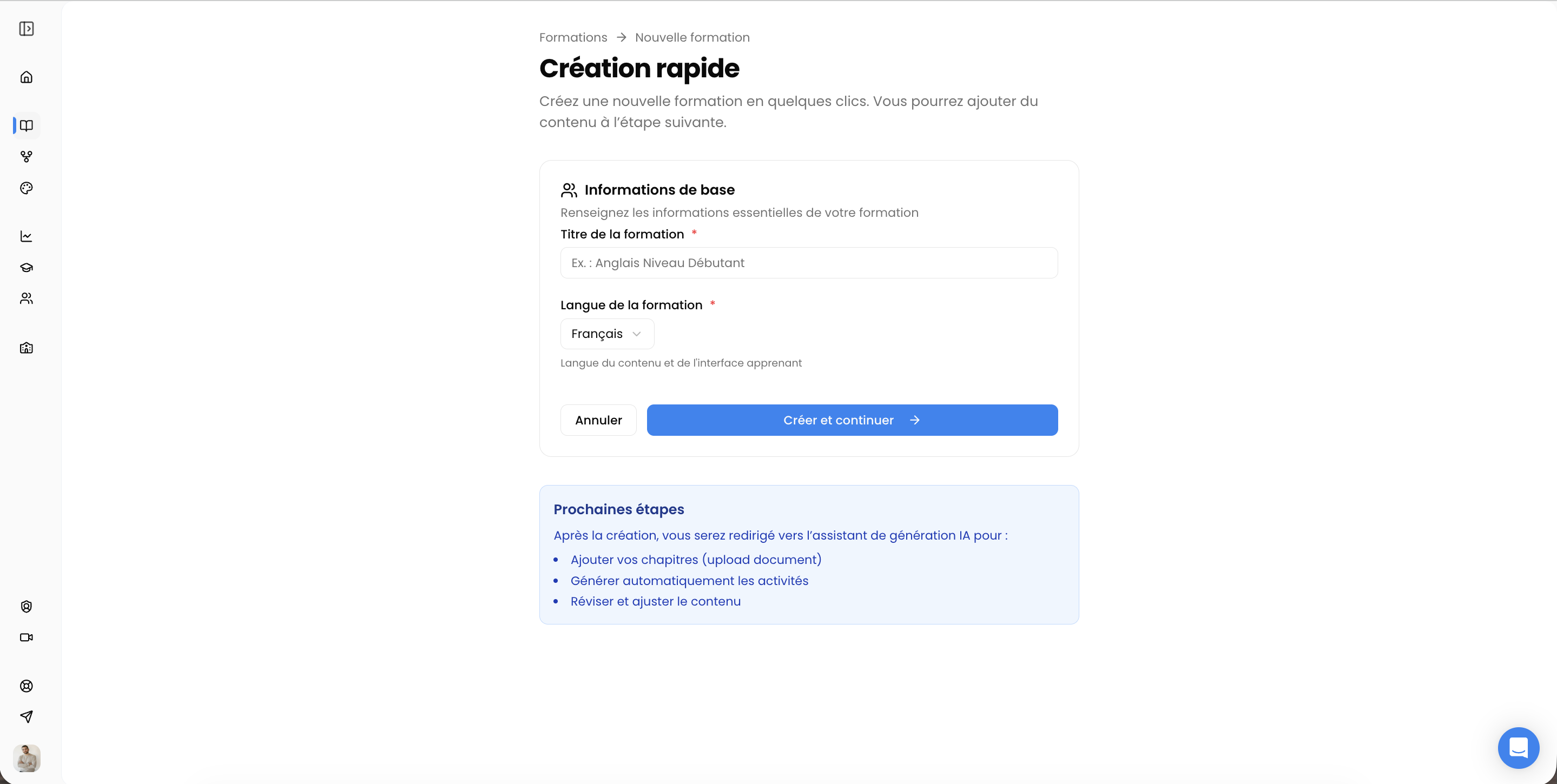
Start by scoping your course: choose whether you're building a full subject or a single chapter.
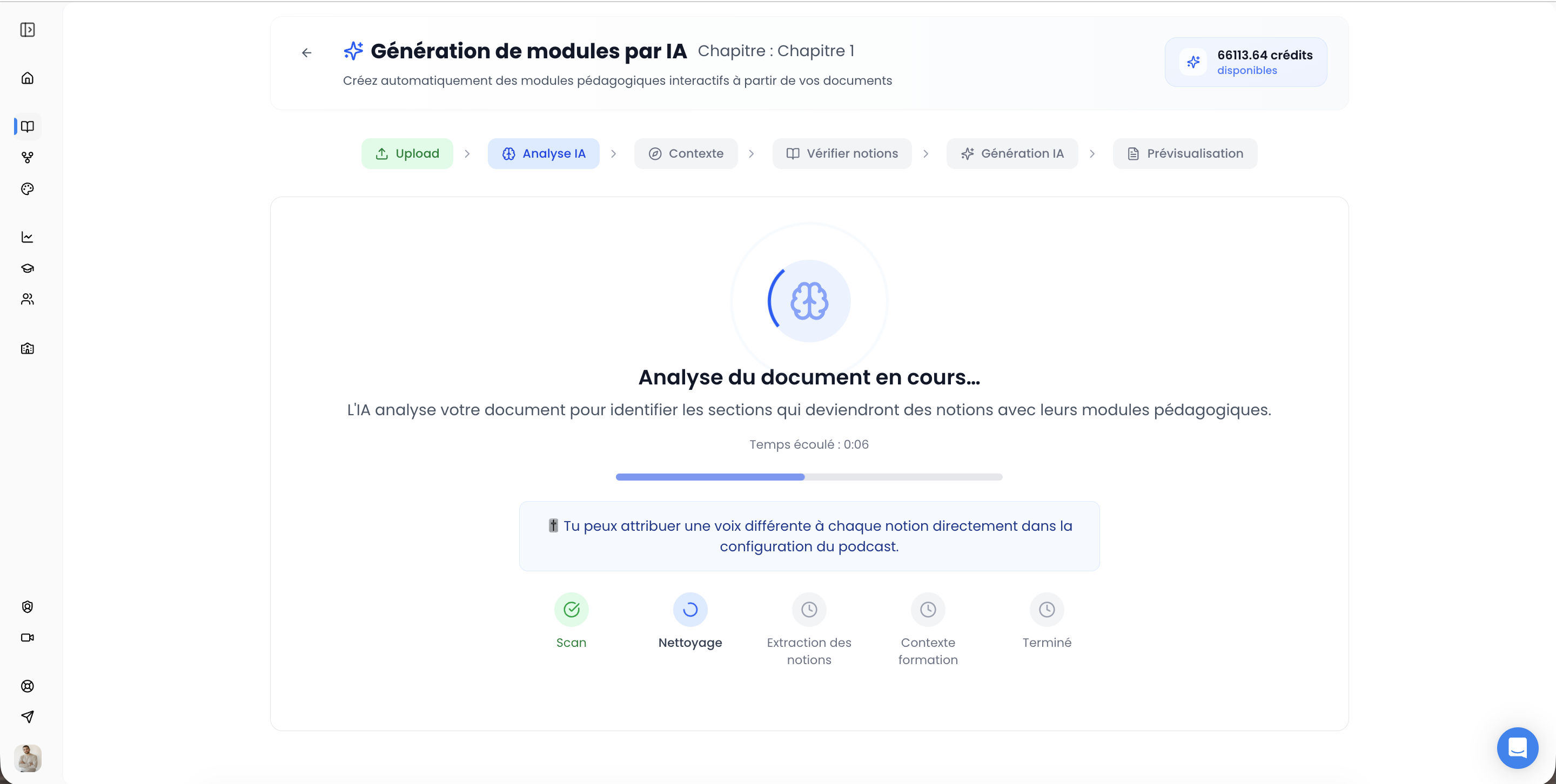
Add your training materials (PDF, PPT, etc.). Our AI tools automatically analyze and preprocess your documents — identifying key concepts, structuring information, and preparing tailored content generation.
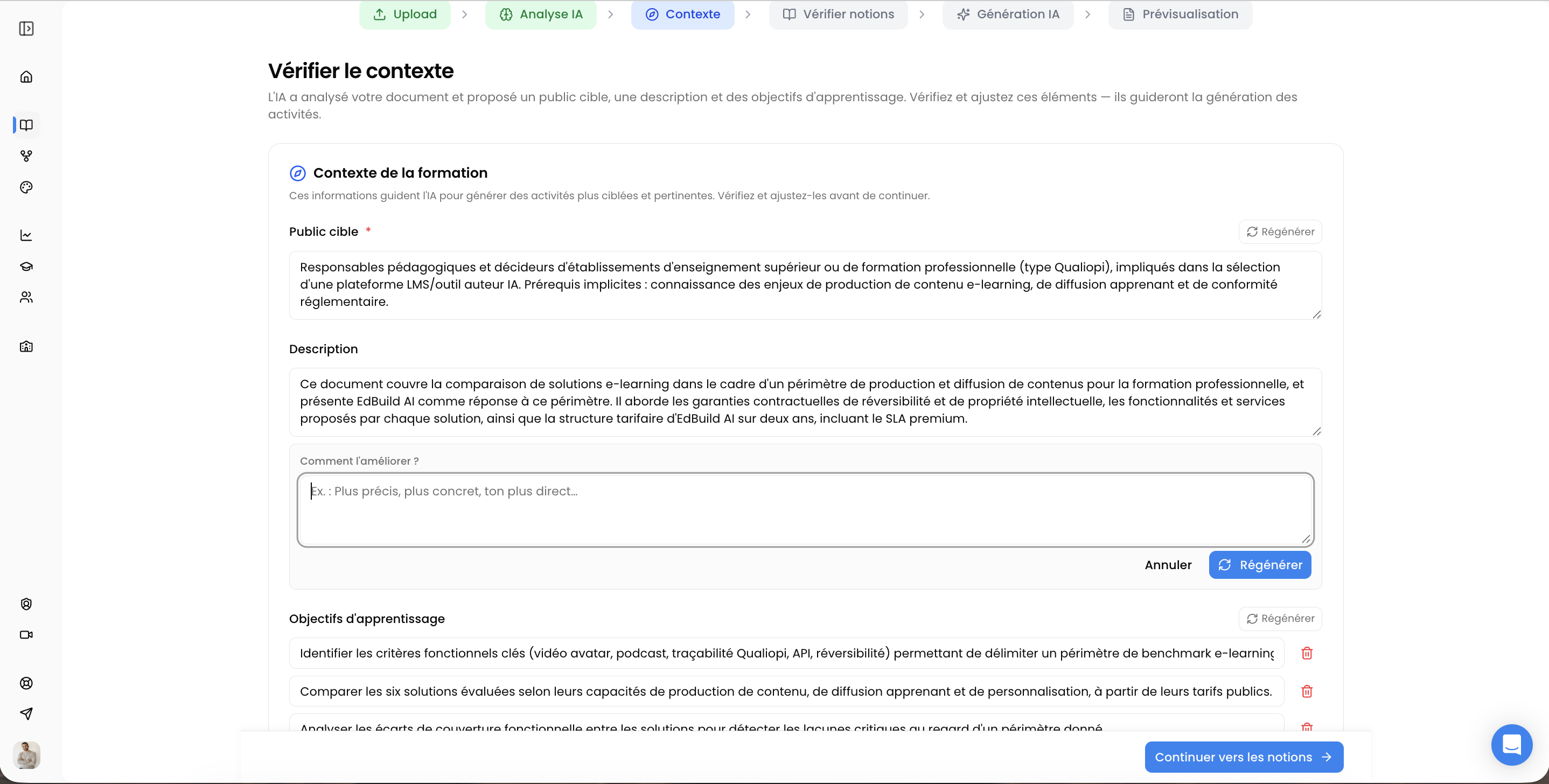
The AI suggests the target audience, description and learning objectives of your course, aligned with Bloom's taxonomy. Edit them manually or request a new generation at any time.
For each identified concept, our AI tools automatically generate learning activities (quizzes, glossaries, flashcards…) and a video lesson — following a coherent progression validated by our instructional design experts.
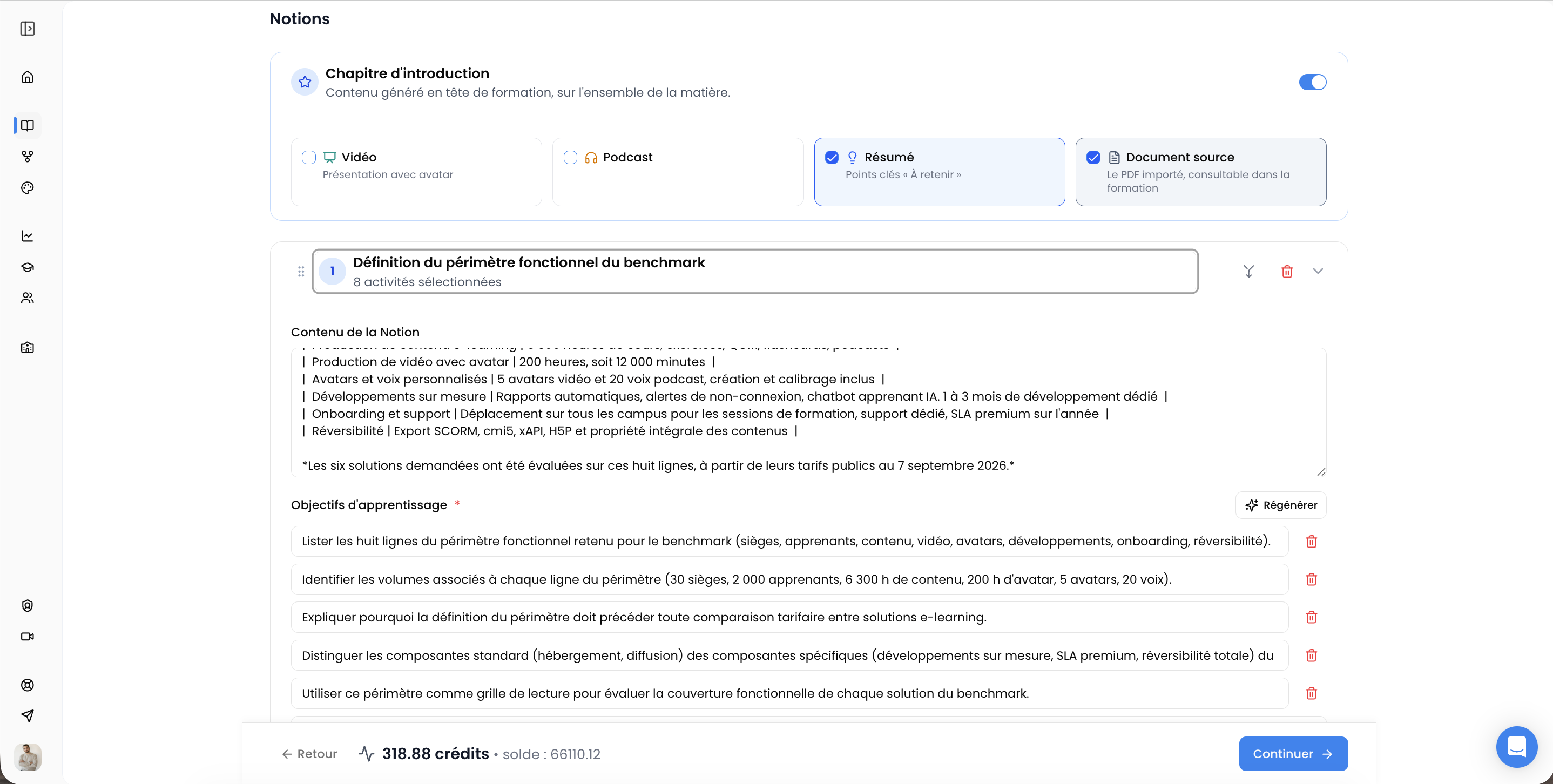
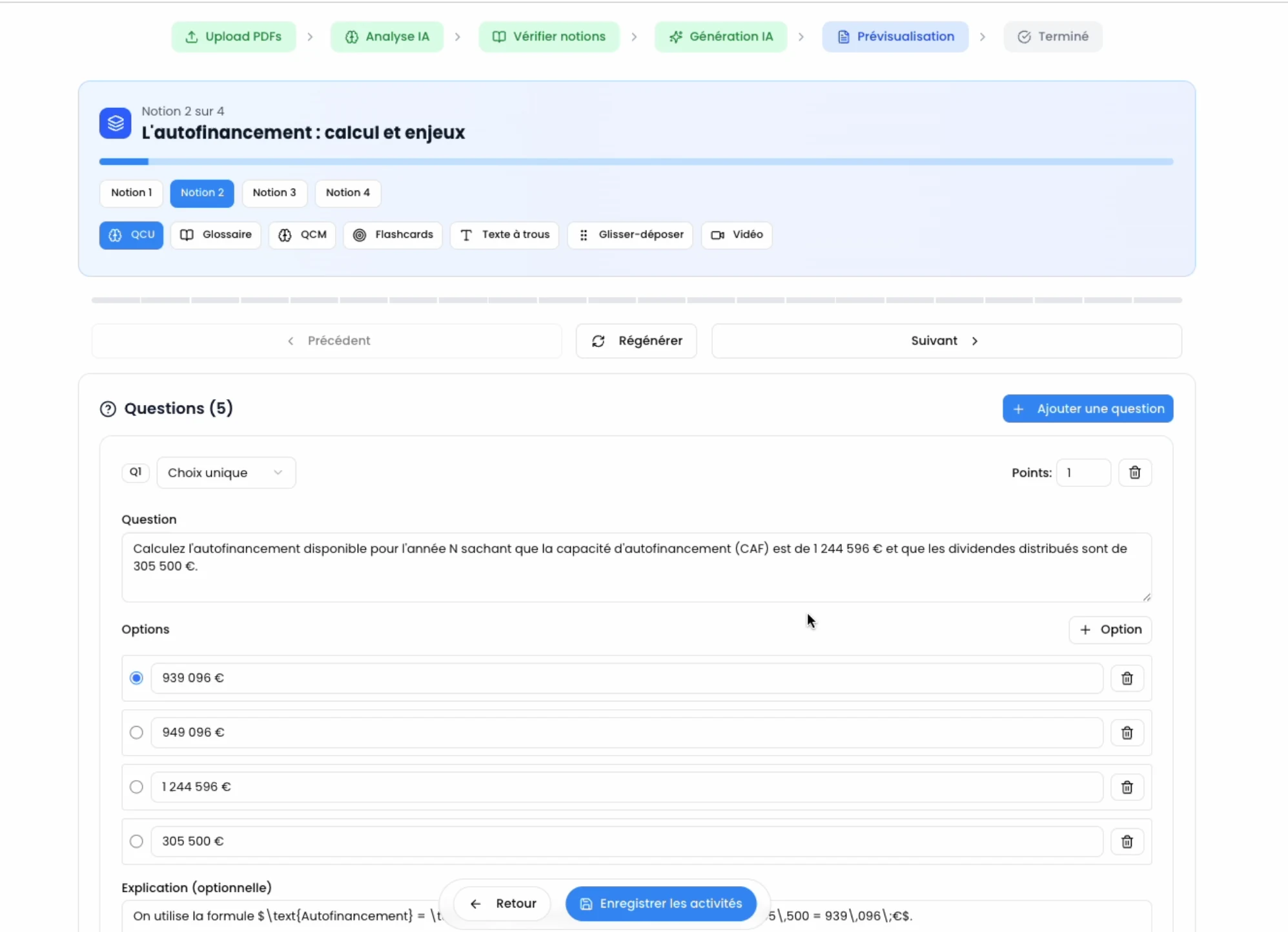
You're in control at every step. Approve generated content, or reject it if it doesn't fit. If rejected, edit manually or tell our AI what needs adjusting — and regenerate instantly.
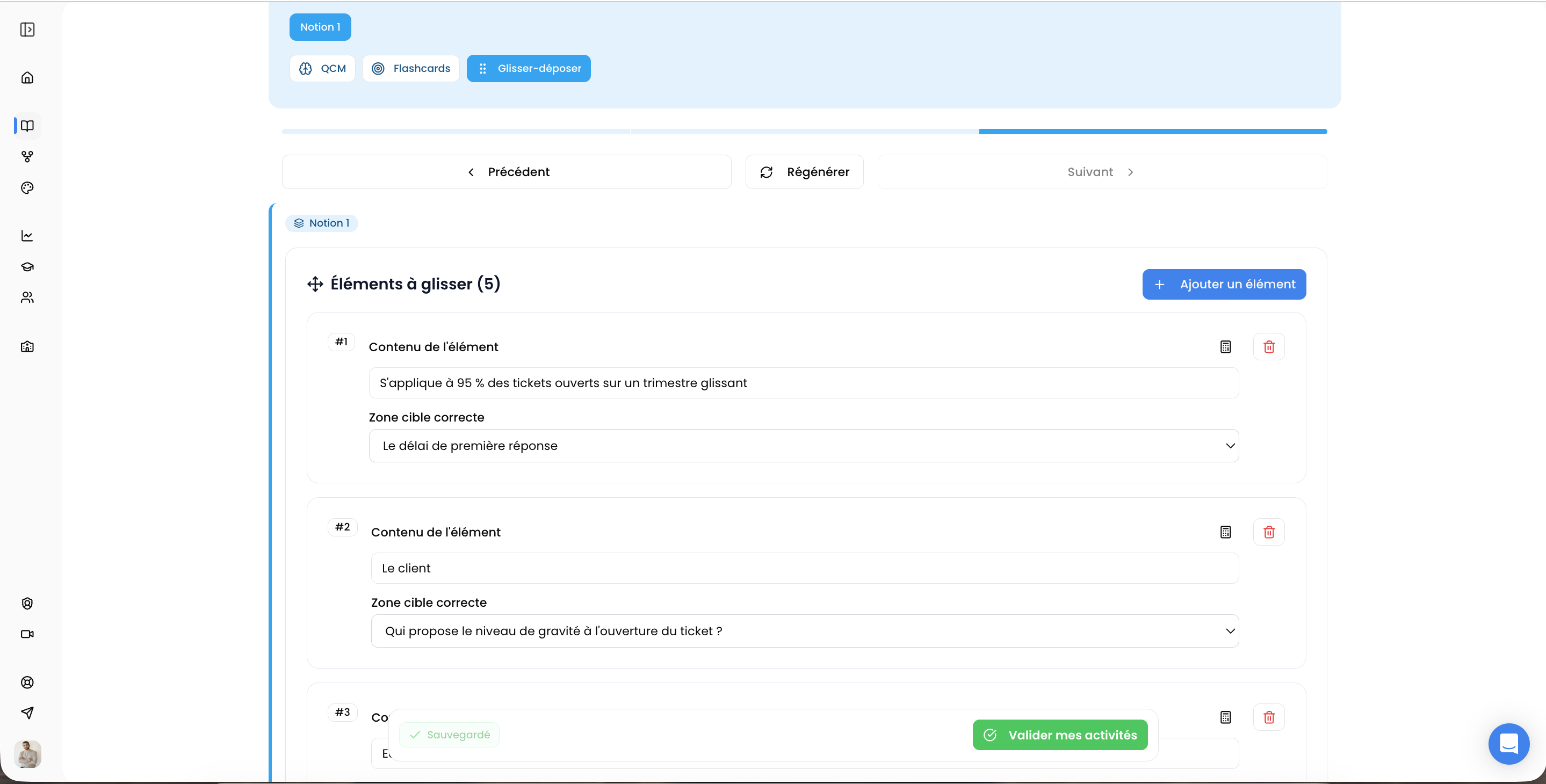
Once your course is finalized, publish it in one click. Then add it to an existing learning path or deliver it directly to your learner groups.
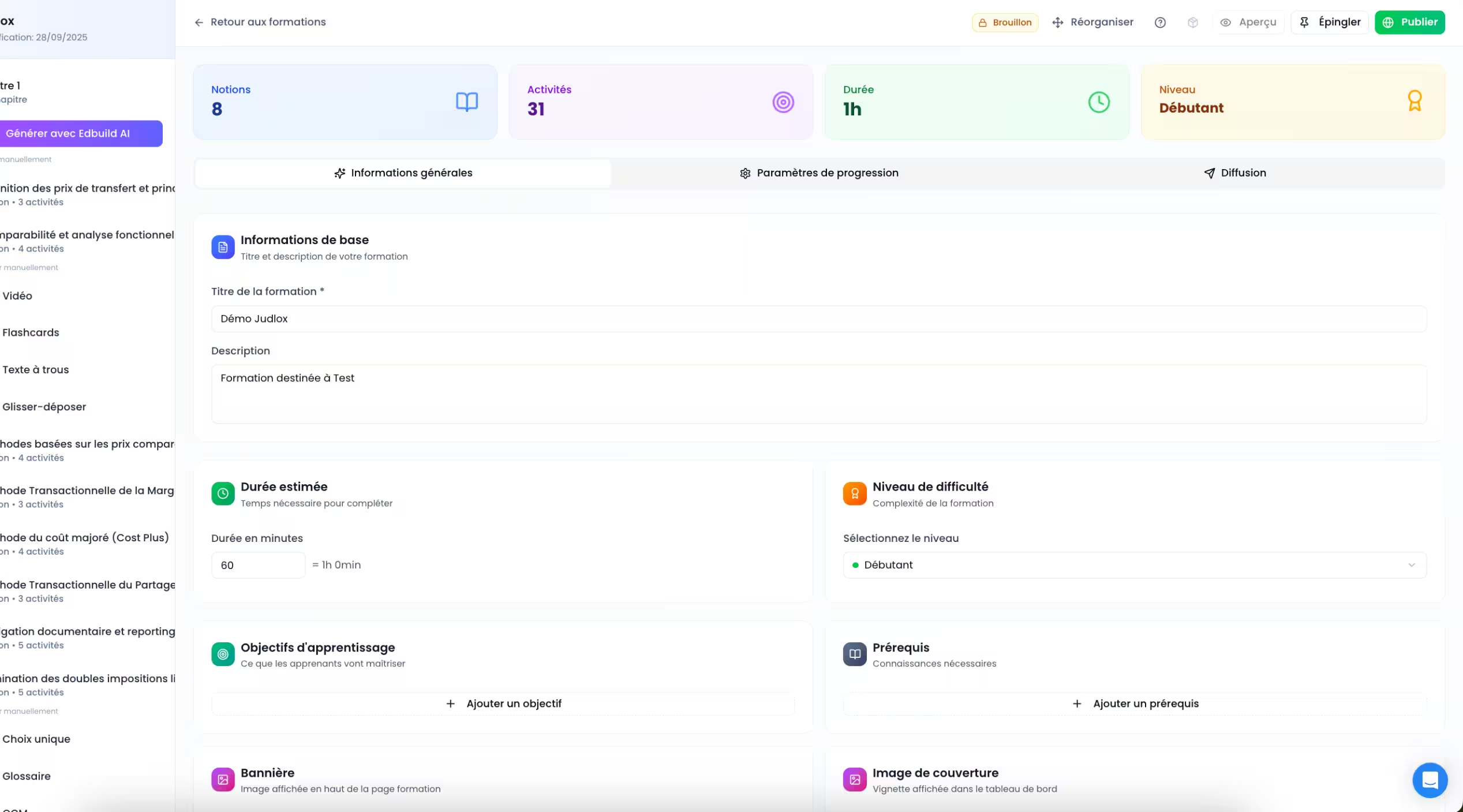
Your content, your brand, your rules
AI structures the substance, you keep control of the form. Integrate your brand guidelines, add your own videos, and build courses truly tailored to your teams, your roles and your goals.
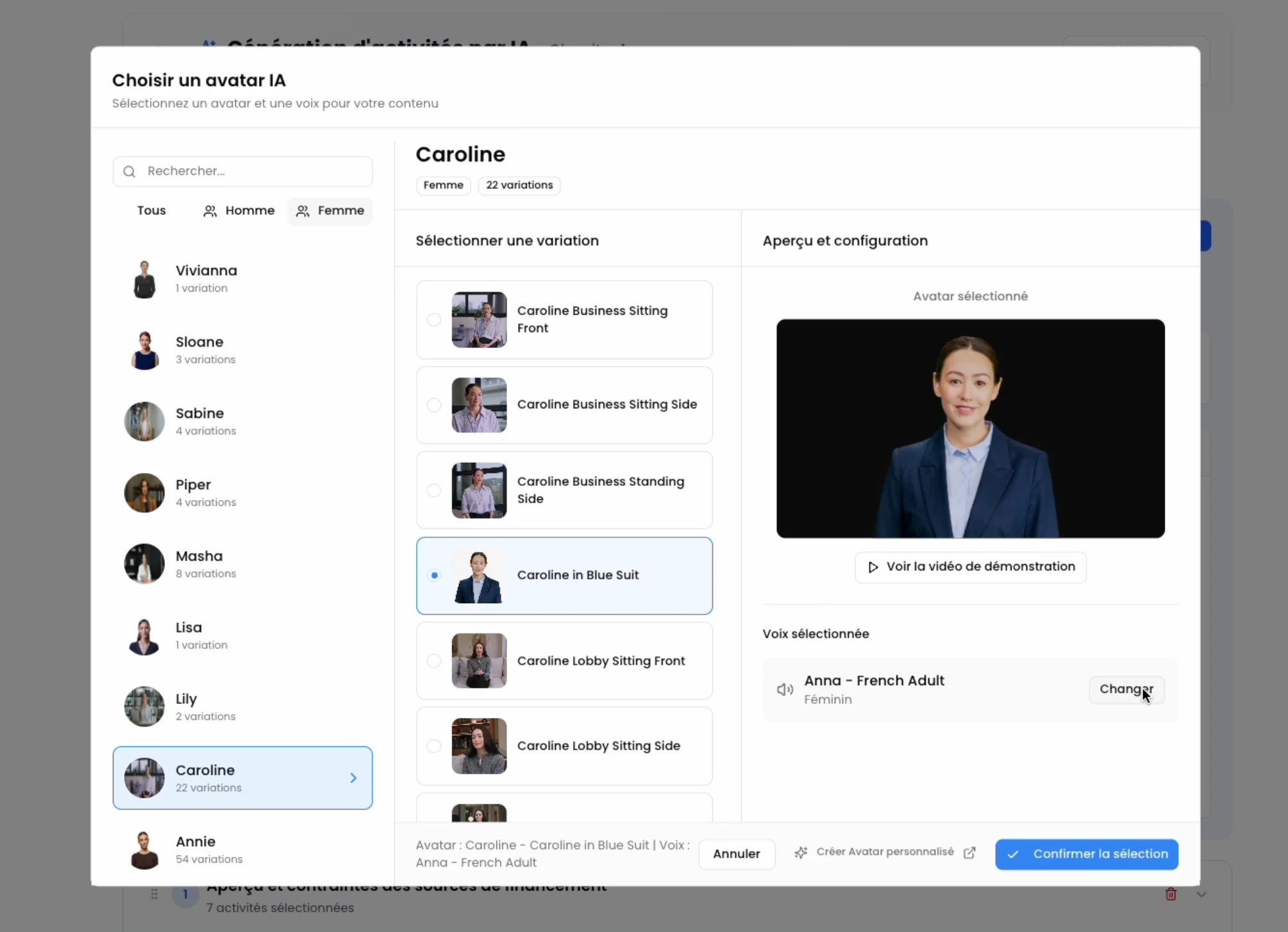
Automatically generate video lessons featuring your trainer's realistic digital avatar — true to their voice and appearance — or choose from our library of available virtual avatars.
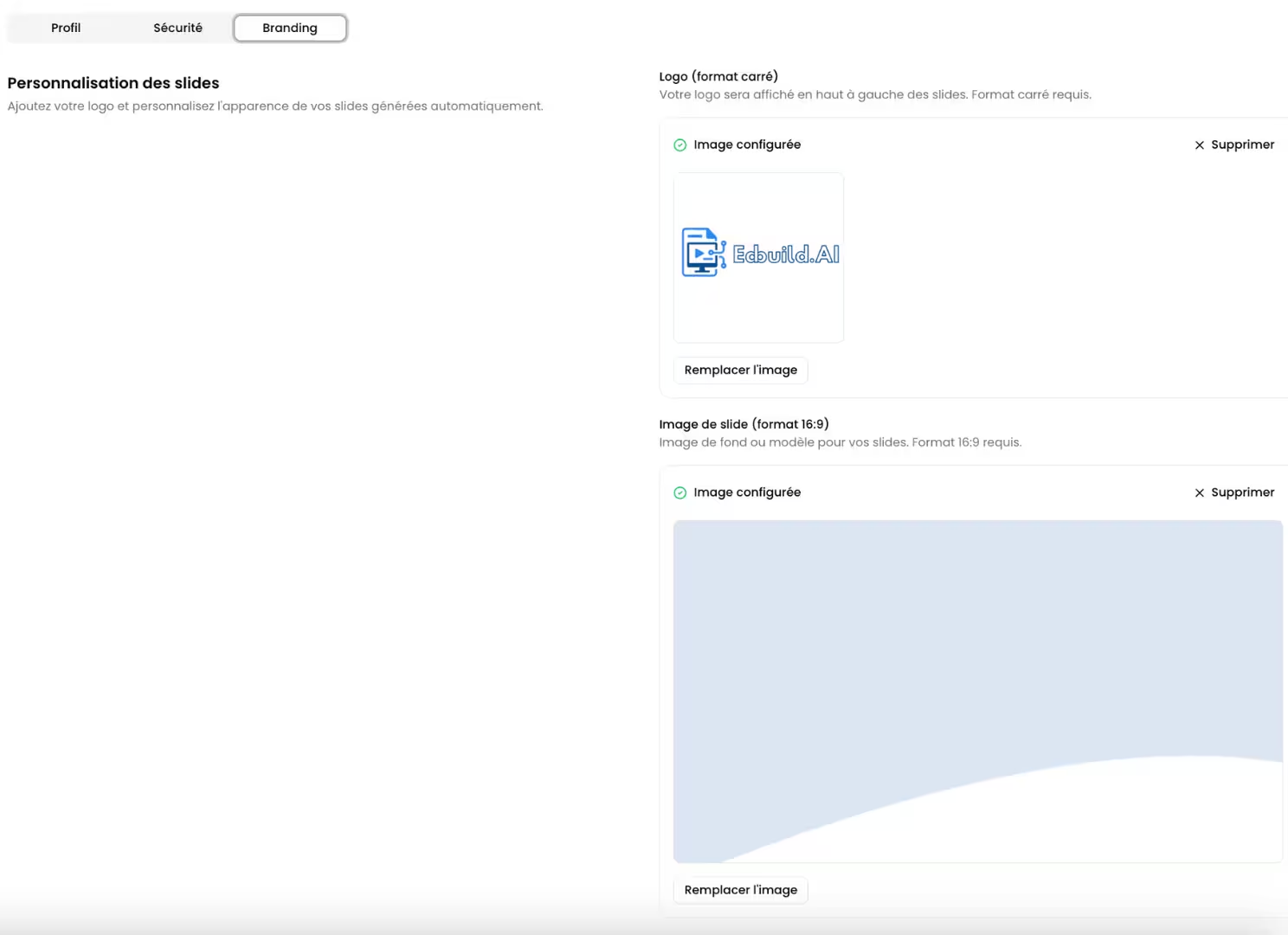
Apply your brand colors, fonts, logos and visual elements across all content. Customize your videos and the learner platform to match your identity.
At every step, approve, edit or regenerate. AI-assisted production — always under your control.
Available credits, detailed history, breakdown by content type: you know exactly where your AI budget goes, with no surprise invoice at month's end.
Detailed history, monthly analytics, and full activity log: available in your EdBuild AI workspace.
Full-course translation from the Team plan, in 3 of 50+ languages: the translated version stays fully editable, like the rest of your content.
Deliver your courses directly on the EdBuild AI e-learning platform and get a seamless, integrated, optimized experience: no files to export, no plugins to install, instant delivery to your learner groups with real-time tracking.
❓ Frequently asked questions
PDF, Word, PowerPoint or text files, up to 25 MB per file. The AI extracts the key lessons and generates the course structure.
Video lessons with an avatar, audio podcasts, multiple-choice and single-answer quizzes, fill-in-the-blank, flashcards, drag-and-drop, glossaries and key takeaways.
Yes, every activity can be edited before and after publication, live for the learner, with no republishing. Once a lesson is finalized, the AI can no longer regenerate it, but it stays editable by hand.
Yes. Custom video avatars and voices are included from the Team plan, with 3 avatars and 10 voices, and available as an add-on on the Starter plan.
One trainer on the Starter plan, ten on the Team plan, and extra trainer seats can be added one at a time.
Yes, from the Team plan a course can be translated into 3 languages out of 50+, and learners pick their language when they open the course. Translation uses credits, depending on the size of the course.
An AI e-learning authoring tool automatically turns existing documents (PDF, PowerPoint, Word) into interactive e-learning modules, quizzes, flashcards, videos and glossaries, with no technical skills required. EdBuild AI generates a complete module in 12 minutes from a 52-page document.
EdBuild AI is a French alternative to Articulate 360 with native AI. Where Articulate 360 covers authoring only and costs around €1,600 per user per year, EdBuild AI combines an AI authoring tool and a built-in LMS from €990 per year. It automatically generates quizzes, avatar videos, flashcards and SCORM exports from your documents.
Upload your PDF or PowerPoint. The AI analyzes the content and identifies the key concepts, then generates the learning activities: quizzes, glossary, avatar video. You review or adjust, then publish to the built-in LMS or export to SCORM. Count on 12 minutes for a document of around fifty pages.
SCORM 1.2, SCORM 2004, xAPI (Tin Can), cmi5 and H5P, compatible with the LMS platforms on the market (Moodle, 360Learning, Talentsoft, Docebo, Cornerstone). You can also deliver courses directly through the built-in EdBuild AI LMS, with no export.

